

Nothing better than a nice bit of whining to start off this post. My pace is low because the university is sucking up all my vital energies. If you have been following my blog in the latest posts, you already know what I am talking about. In my free time I have been running around with my project, my internship and my job. My blog is also on that to-do list, but the poor little thing has less priority here. Some of you may know that I am a model-helicopter hobbyist, but as I told my friend Heldai the other day: “Hobby is the name we give to what we do to fill the time we have free, but I have yet to discover the name we would give to what we would like to do if we had free time…”. Anyway, since this has nothing to do with today’s post, let us change the subject.
Between one thing and another, I was trying to think of something simple for a small post. It was then that the question from reader Ismael Rocha (BrasÃlia – DF) gave rise to this post.
“Is there a way to save the BSODs to later check for possible problems?”
Save a blue screen? Save what? The machine is already dead, my friend! It is gone! It is over! What you can still try to save is your job.
Joking aside, yes there is.
The operating system is pre-configured to restart automagically when a critical failure happens. Critical failure is the polite way of saying that the house fell down, the cow went to the swamp, the alligator hugged you, the drum spun, the iron screamed, the weather closed in, it got too small for you… anyway, a blue screen happened. Not that I do not like blue screens, but rather the side effect they bring us. By the worldwide standard of third-party driver consumers, if you are the author of a driver installed on a machine at the moment of the failure, whether it is running or not, then the failure is your fault until proven otherwise. It is sad, but it is reality. From the moment a blue screen happens, you are the default culprit and you will have to keep putting up with little jokes for the rest of eternity. I would like to take advantage of the context to send a hug to my friend Heldai.
Displaying the blue screen
In an attempt to save your dignity, you try to prove the fault is not yours. Saying that the machine reset is a feature of your driver and that fortunately it worked very well is not going to stick, not the second time. But what can you do if the blue screen is just a flash of information while the machine restarts? Fortunately you can change that. By right-clicking on “My Computer”, selecting “Properties”. From there just take a look at the figure below to find out that you can prevent the machine from restarting automagically.
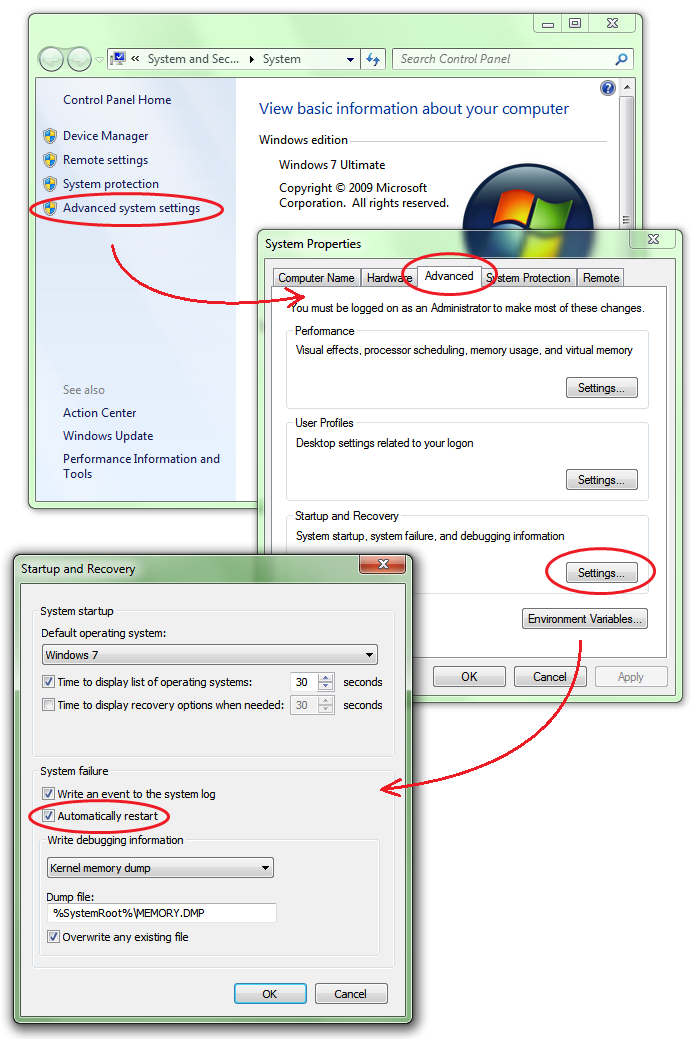
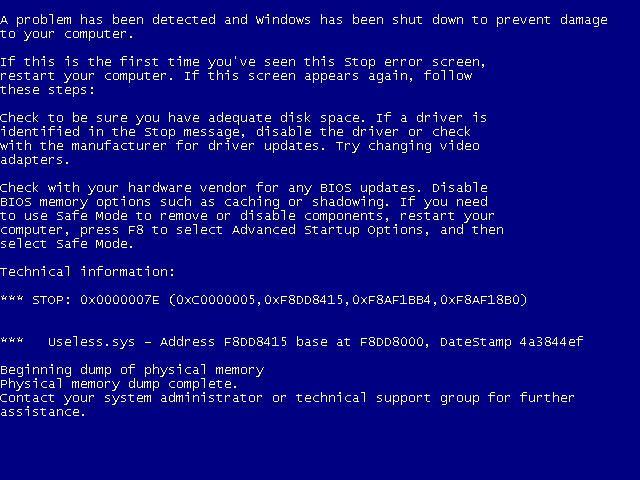
You will have to uncheck the “Automatically restart” option, and thus have all the time you need to show everyone that the problem is not yours. Most of the time the system manages to detect the driver that is probably the cause of all this headache and display the file name on the blue screen as we can see in the figure below.
Taking a blue screen apart
“Wow! So Windows has an artificial intelligence algorithm that probably uses nanotechnology somehow to find the guilty driver?”
Actually it is a bit simpler than that; Windows simply takes the image of the driver that threw an unhandled exception or that voluntarily brought down the system upon detecting some inconsistency. For this reason, the name of the driver displayed is not always in fact the name of the guilty driver. If we think of the simple example where the driver MetralhadoraGiratoria.sys writes where it should not, corrupting some allocation Pool, this error can later be detected by the driver Laranja.sys which, when making a memory allocation, calls a system routine that in turn calls the KeBugCheckEx() routine upon detecting such an inconsistency. Can you guess the name of the driver that will appear on the BSOD?
Other information can still be obtained from the blue screen. If it is the name of your driver that appears on the screen, then you can also get the address of the instruction where the disaster occurred. In our example the address is 0xF8DD8A415; from there we can reach the function that was executing at the moment of the failure if we have the map file generated by the linker. It is also possible to obtain the date of the file image and clear up that doubt about whether it really was the right version that was running. The file date is obtained from the DateStamp field and is expressed as a 32-bit hexadecimal value representing the number of seconds since midnight of January first, 1970. What is really hard is finding someone with enough patience to calculate that in front of a blue screen. There are far less laborious ways to find out that the fault was indeed yours.
In my opinion, the most relevant information the blue screen offers is the Stop Code. As the name suggests, Stop Code is a code that will indicate the reason for the system failure. You can consult the list of Stop Codes at this link or take a look at the C:\WinDDK\6001.18002\inc\api\BugCodes.h file that comes with the WDK.
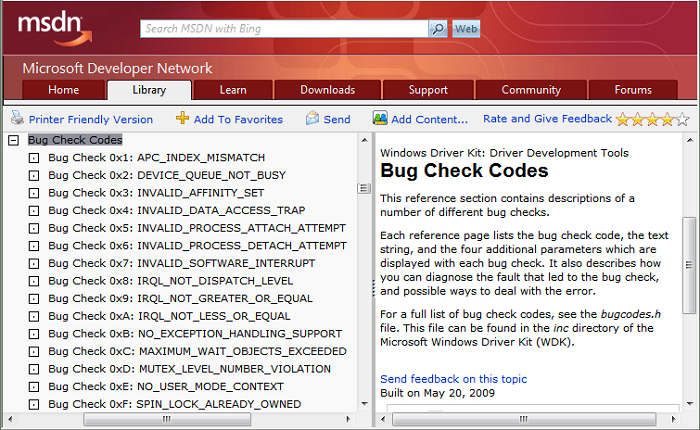
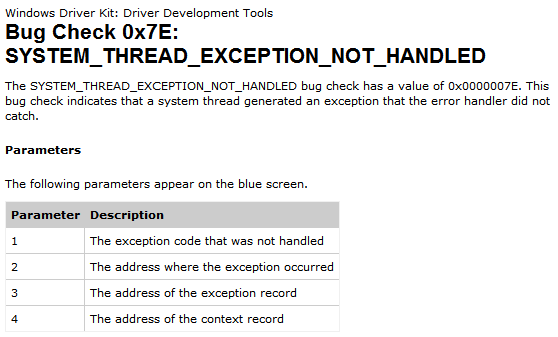
Stop Codes come with up to four parameters that bring additional information to the stop code. The interpretation of these values will depend on the failure code, which in our example is 0x7E. Consulting the link I mentioned a moment ago, we will have the following interpretation for the values presented to us.
But is there a way to save the BSOD or not?
Yeah yeah yeah… It is just that I start writing and end up getting carried away. But anyway, when a critical failure occurs, the system creates a file known as a Crash Dump. There are three options of crash dumps that can be generated.
-
Complete Dump: In this option, the entire contents of physical memory at the moment of the failure will be copied into a file. Obviously the size of this file will be the amount of memory present on the machine plus an extra 1MB of header. This option does not appear on machines that have more than 2GB of physical memory, but it is still possible to configure the complete dump without using this graphical interface by writing directly to the registry. This method is also known as “configuring it by hand”. The complete dump is very useful when the information present in memory pages in User Space is relevant to the problem, such as Dead Lock situations. If you do not know what User Space means, this post may help.
-
Kernel Dump: Here only the pages in System Space will be copied to disk. The size of this file will vary depending on how much physical memory the machine has installed, but there is no exact proportion. Much of the page balancing used by the virtual memory manager will determine the size of this file, but it is on the order of 200MB on a system with 4GB of total memory (you can already carry it on a pen drive). This option is normally the most viable, since it only carries the most relevant information for a system crash.
-
Minimal Dump: Here a 64KB file will be generated for 32-bit systems (128KB for 64-bit systems). In this file we have only the Stop Code and its parameters, the list of drivers loaded at the moment of the failure, information about the current process and thread, and the Call Stack of the thread that caused the failure.
In the same window where you configure the automatic system restart, there are two other fields that will configure the type of dump desired and the path where it will be generated. Now you can already take your blue screen in your heart and debug it wherever you want. At home, at work, on the train, on the subway… You can also ask clients to send you their crash dumps so that you can diagnose the problem without having to travel across rivers and mountains in the cold and the rain.
I have the Crash Dump, now what?
Now that you are the happy owner of a wonderful Crash Dump file, what more could you want from life? Maybe being able to find out the cause of the problem would already be a good start. For that we are going to use the operating system’s native debugger. If you do not know WinDbg yet, then take a look at this post so you know what we are talking about here.
Assuming you have Windbg installed on your development machine, and that it has the symbol server configured, all we have to do now is open WinDbg, select the “Open Crash Dump…” item in the “File” menu and point to the path of the dump file you copied from the poor machine that dared to run your driver. The text below is the result shown in the command window when the Crash Dump is opened.
Microsoft (R) Windows Debugger Version 6.11.0001.404 AMD64
Copyright (c) Microsoft Corporation. All rights reserved.
Loading Dump File [Z:\Sources\MEMORY.DMP]
Kernel Summary Dump File: Only kernel address space is available
Symbol search path is: srv*
Executable search path is:
Windows XP Kernel Version 2600 (Service Pack 3) UP Free x86 compatible
Product: WinNt, suite: TerminalServer SingleUserTS
Built by: 2600.xpsp.080413-2111
Machine Name:
Kernel base = 0x804d7000 PsLoadedModuleList = 0x80553fc0
Debug session time: Thu Jun 18 14:46:24.969 2009 (GMT-3)
System Uptime: 0 days 0:03:20.375
Loading Kernel Symbols
...............................................................
.........................................................
Loading User Symbols
Loading unloaded module list
...........
*******************************************************************************
* *
* Bugcheck Analysis *
* *
*******************************************************************************
Use !analyze -v to get detailed debugging information.
BugCheck 7E, {c0000005, f8d9f415, f8af1bb4, f8af18b0}
Probably caused by : Useless.sys ( Useless!DriverEntry+5 )
Followup: MachineOwner
---------
Now if we simply run the suggested command, we will already have a good description of what happened to the machine that suffered the critical failure.
kd> !analyze -v
*******************************************************************************
* *
* Bugcheck Analysis *
* *
*******************************************************************************
SYSTEM_THREAD_EXCEPTION_NOT_HANDLED (7e)
This is a very common bugcheck. Usually the exception address pinpoints
the driver/function that caused the problem. Always note this address
as well as the link date of the driver/image that contains this address.
Arguments:
Arg1: c0000005, The exception code that was not handled
Arg2: f8d9f415, The address that the exception occurred at
Arg3: f8af1bb4, Exception Record Address
Arg4: f8af18b0, Context Record Address
Debugging Details:
------------------
EXCEPTION_CODE: (NTSTATUS) 0xc0000005 - The instruction at 0x%08lx referenced
memory at 0x%08lx. The memory could not be %s.
FAULTING_IP:
Useless!DriverEntry+5 [z:\sources\driverentry\useless\useless.c @ 7]
f8d9f415 c7050000000000000000 mov dword ptr ds:[0],0
EXCEPTION_RECORD: f8af1bb4 -- (.exr 0xfffffffff8af1bb4)
ExceptionAddress: f8d9f415 (Useless!DriverEntry+0x00000005)
ExceptionCode: c0000005 (Access violation)
ExceptionFlags: 00000000
NumberParameters: 2
Parameter[0]: 00000001
Parameter[1]: 00000000
Attempt to write to address 00000000
CONTEXT: f8af18b0 -- (.cxr 0xfffffffff8af18b0)
eax=07263867 ebx=00000000 ecx=bb40e64e edx=1be10003 esi=e19feea8 edi=81eb41d0
eip=f8d9f415 esp=f8af1c7c ebp=f8af1c7c iopl=0 nv up ei ng nz na po nc
cs=0008 ss=0010 ds=0023 es=0023 fs=0030 gs=0000 efl=00010282
Useless!DriverEntry+0x5:
f8d9f415 c7050000000000000000 mov dword ptr ds:[0],0 ds:0023:00000000=????????
Resetting default scope
PROCESS_NAME: System
ERROR_CODE: (NTSTATUS) 0xc0000005 - The instruction at 0x%08lx referenced memory
at 0x%08lx. The memory could not be %s.
EXCEPTION_PARAMETER1: 00000001
EXCEPTION_PARAMETER2: 00000000
WRITE_ADDRESS: 00000000
FOLLOWUP_IP:
Useless!DriverEntry+5 [z:\sources\driverentry\useless\useless.c @ 7]
f8d9f415 c7050000000000000000 mov dword ptr ds:[0],0
BUGCHECK_STR: 0x7E
DEFAULT_BUCKET_ID: NULL_DEREFERENCE
LAST_CONTROL_TRANSFER: from 8057677f to f8d9f415
STACK_TEXT:
f8af1c7c 8057677f 81eb41d0 81d46000 00000000 Useless!DriverEntry+0x5
[z:\sources\driverentry\useless\useless.c @ 7]
f8af1d4c 8057688f 80000360 00000001 00000000 nt!IopLoadDriver+0x66d
f8af1d74 80534c02 80000360 00000000 823c68b8 nt!IopLoadUnloadDriver+0x45
f8af1dac 805c6160 b29accf4 00000000 00000000 nt!ExpWorkerThread+0x100
f8af1ddc 80541dd2 80534b02 00000001 00000000 nt!PspSystemThreadStartup+0x34
00000000 00000000 00000000 00000000 00000000 nt!KiThreadStartup+0x16
FAULTING_SOURCE_CODE:
3: NTSTATUS DriverEntry(IN PDRIVER_OBJECT pDriverObject,
4: IN PUNICODE_STRING pusRegistryPath)
5: {
6: //-f--> Diga olá à BSOD e vá se acostumando com ela...
> 7: *(PVOID*)0x00000000 = 0;
8:
9: //-f--> Não vamos viver para ver isso.
10: return STATUS_SUCCESS;
11: }
SYMBOL_STACK_INDEX: 0
SYMBOL_NAME: Useless!DriverEntry+5
FOLLOWUP_NAME: MachineOwner
MODULE_NAME: Useless
IMAGE_NAME: Useless.sys
DEBUG_FLR_IMAGE_TIMESTAMP: 4a3844ef
STACK_COMMAND: .cxr 0xfffffffff8af18b0 ; kb
FAILURE_BUCKET_ID: 0x7E_Useless!DriverEntry+5
BUCKET_ID: 0x7E_Useless!DriverEntry+5
Followup: MachineOwner
---------
If the machine that is opening the dump file is your driver’s development machine, Windbg will be able to automagically find your driver’s sources and point out the cause of the failure in great detail. So make sure your manager is not nearby at that moment. This is already much more information than you could get simply by looking at the computer’s blue screen. In this example I used the example driver from the Getting Started post to reproduce the blue screen. But do not worry about that; even being a novice driver programmer, one of the first things you will learn is how to generate blue screens.
Once again I hope I have helped.
Have fun!
Leave a Reply