

As you saw in my last post, my graduation project will use a tool called LabView to receive and handle data from a USB board. This data will be collected from a device called a gyroscope using TTL 232, which is an RS 232 with voltages of 0 and 5 volts. But as a proof of concept, we would have to make the driver simulate the reception of data to send to LabView. We used a circuit that turns TTL 232 into RS 232 just to allow the data to be read from a conventional serial port. Then I made a silly little program that writes to a file everything it receives through the serial port. Since the firmware had not even been started, I decided to make a driver that would read this file and pass the data on to the application layer. Questions about how to manipulate files are especially frequent. Many readers would like to know how to create, read, write and even delete files in Kernel Mode. Maybe I will disappoint you a little by saying that it is not so different from User Mode, but since we are here doing nothing, why not demonstrate?
I believe the biggest difference is in the step where we get the handle to the file. Let us start by taking a look at the ZwCreateFile() routine.
NTSTATUS
ZwCreateFile(
OUT PHANDLE FileHandle,
IN ACCESS_MASK DesiredAccess,
IN POBJECT_ATTRIBUTES ObjectAttributes,
OUT PIO_STATUS_BLOCK IoStatusBlock,
IN PLARGE_INTEGER AllocationSize OPTIONAL,
IN ULONG FileAttributes,
IN ULONG ShareAccess,
IN ULONG CreateDisposition,
IN ULONG CreateOptions,
IN PVOID EaBuffer OPTIONAL,
IN ULONG EaLength
);
The interesting part of this step is that the routine does not have the classic FileName parameter that we saw in the equivalent CreateFile() API for User Mode. The file name is described in the OBJECT_ATTRIBUTES structure described below.
typedef struct _OBJECT_ATTRIBUTES {
ULONG Length;
HANDLE RootDirectory;
PUNICODE_STRING ObjectName;
ULONG Attributes;
PVOID SecurityDescriptor;
PVOID SecurityQualityOfService;
} OBJECT_ATTRIBUTES, *POBJECT_ATTRIBUTES;
typedef CONST OBJECT_ATTRIBUTES *PCOBJECT_ATTRIBUTES;
To fill in this structure we use the InitializeObjectAttributes() macro.
VOID
InitializeObjectAttributes(
OUT POBJECT_ATTRIBUTES InitializedAttributes,
IN PUNICODE_STRING ObjectName,
IN ULONG Attributes,
IN HANDLE RootDirectory,
IN PSECURITY_DESCRIPTOR SecurityDescriptor
);
The file path is described in the ObjectName parameter, which is a pointer to a UNICODE_STRING. In Kernel, the full path to a file would be described as “\Device\HarddiskVolume0\Directory\File.ext” for example. This happens because the “C:” part, which we normally use in the file path in User Mode, is a Symbolic Link. Symbolic who? A Symbolic Link would be like a shortcut to the name in Kernel Mode. User Mode applications cannot open just any Kernel object right off the bat. So each driver creates Symbolic Links for the objects it wants to make available to User Mode. When an application wants to open the file “C:\Temp\Test.txt”, the Win32 subsystem prefixes this path with “\??\”, which is the starting directory of this search, resulting in “\??\C:\Temp\Test.txt”. When this name reaches the Object Manager, the prefix indicates that the search must start in the “\DosDevices” directory, the same one we used in the call to the IoCreateSymbolicLink() API. Anyway, skipping some details to finish this post still in this lifetime, the prefix will take us to the “\GLOBAL??\” directory. After the “\??” prefix was processed, the next part to be processed is “C:”. Using the WinObj tool from Sysinternals illustrated in the figure below, we see that here on my machine “C:” will be replaced by “\Device\HarddiskVolume3”, which in this case is the path to the device that will receive the rest of the string to be processed. After this substitution is done, the string is now “\Device\HarddiskVolume3\Temp\Test.txt”. The Object Manager now starts processing the string again and finds the device described in it.
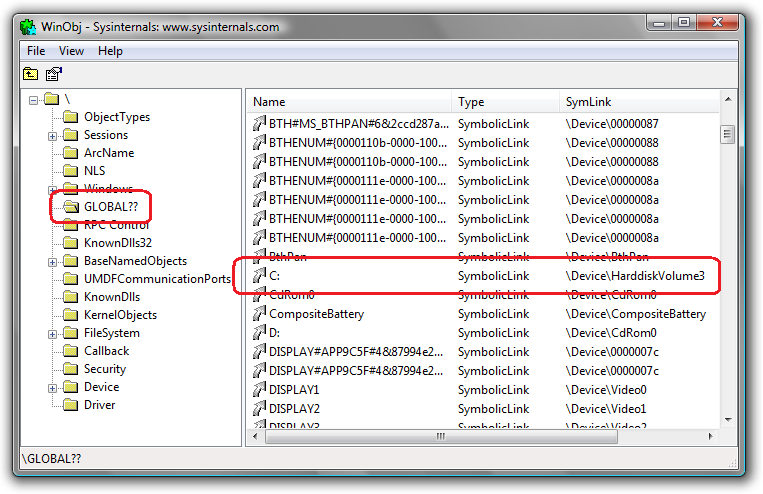
After that, knowing that it is a data volume device, the system consults a structure called the Volume Parameter Block (VPB). It creates a link that will tell us whether the indicated volume was mounted by some File System driver. In my case, NTFS would be this driver. The device it created would do the rest of the string handling to find the desired file. You will not have to go through this whole path to open the file. Just put the “\??\” prefix in the path of the file you want to open and all your problems are over and done with. If you want more details about the name translations that occur during the opening of a file, this article from OSR Online is great. This is the link to the reference that talks about this.
After it is open, reading the file becomes easy with the ZwReadFile() routine.
NTSTATUS
ZwReadFile(
IN HANDLE FileHandle,
IN HANDLE Event OPTIONAL,
IN PIO_APC_ROUTINE ApcRoutine OPTIONAL,
IN PVOID ApcContext OPTIONAL,
OUT PIO_STATUS_BLOCK IoStatusBlock,
OUT PVOID Buffer,
IN ULONG Length,
IN PLARGE_INTEGER ByteOffset OPTIONAL,
IN PULONG Key OPTIONAL
)
The steps needed to open and read a file can be summarized in this little example that follows.
/****
*** ReadTestFile
**
** Routine that demonstrates in a simple way how to open and
** read a file.
*/
NTSTATUS ReadTestFile(PVOID pBuffer,
ULONG cbBuffer,
PULONG pulBytesRead)
{
UNICODE_STRING usFileName;
OBJECT_ATTRIBUTES ObjAttributes;
IO_STATUS_BLOCK IoStatusBlock;
HANDLE hFile = NULL;
NTSTATUS nts = STATUS_SUCCESS;
//-f--> We build the UNICODE_STRING containing the path
// of the file we want to open
RtlInitUnicodeString(&usFileName,
L"\\??\\C:\\Temp\\Test.txt");
//-f--> Here the macro helps us with the
// OBJECT_ATTRIBUTES structure
InitializeObjectAttributes(&ObjAttributes,
&usFileName,
OBJ_KERNEL_HANDLE | OBJ_CASE_INSENSITIVE,
NULL,
NULL);
//-f--> Here we open the file.
nts = ZwCreateFile(&hFile,
GENERIC_READ | SYNCHRONIZE,
&ObjAttributes,
&IoStatusBlock,
NULL,
FILE_ATTRIBUTE_NORMAL,
FILE_SHARE_READ,
FILE_OPEN,
FILE_SYNCHRONOUS_IO_NONALERT,
NULL,
0);
//-f--> Returns the error in case of failure.
if (!NT_SUCCESS(nts))
return nts;
//-f--> A simple read from the file.
nts = ZwReadFile(hFile,
NULL,
NULL,
NULL,
&IoStatusBlock,
Buffer,
cbBuffer,
NULL,
NULL);
//-f--> In case of failure, closes the file, returns the
// error and pretends it is not your problem.
if (!NT_SUCCESS(nts))
{
ZwClose(hFile);
return nts;
}
//-f--> Here we get the number of bytes read
*pulBytesRead = IoStatusBlock.Information;
//-f--> Closes the file handle
ZwClose(hFile);
return nts;
}
The proof of concept
Now that we all know how to read a file, it becomes easier to explain how I made a driver that would simulate the readings of a gyroscope just by reading the content of a file. During the existence of this blog, we have already seen how to create a little project from scratch, how to compile drivers using Visual Studio, we have also seen what an IRP is, how to offer read and write services, how to use the FsContext to keep the context between different operations, and since debugging is part of development, we also saw how to debug drivers even on a virtual machine. We are going to use all this junk to build a driver that opens a file, stores its handle in a context area, and that as we perform reads on the device it creates and exports, returns the data from a file on disk. This will serve nicely to simulate the continuous readings that LabView will make to my USB driver.
Opening the Device and File
The driver will receive an IRP_MJ_CREATE call when a handle to the device is opened. I am going to take advantage of this event to already open the file and store its resulting handle in the FsContext of the FILE_OBJECT that I will receive. If you are lost, take a look at the posts indicated earlier.
And what if the file does not exist?
Well, in case such unfortunate events occur, I am going to return the error through the IRP received itself. So, in case the file does not exist or you do not have permission to open it, the error code can be checked through the GetLastError() routine in case we get INVALID_HANDLE_VALUE as the return from opening the device handle.
Take a look at how the opening of the device handle turned out, which in the same operation opens the handle to the file. Attention, do not mix things up. The application will get the handle to the device, and through it, will perform reads on the device. The device in turn will use the file handle to perform reads and return the data to the application.
/****
*** OnCreate
**
** The application is calling CreateFile with the path
** of our device.
*/
NTSTATUS OnCreate(PDEVICE_OBJECT pDeviceObj,
PIRP pIrp)
{
UNICODE_STRING usFileName;
OBJECT_ATTRIBUTES ObjAttributes;
IO_STATUS_BLOCK IoStatusBlock;
PIO_STACK_LOCATION pStack;
NTSTATUS nts = STATUS_SUCCESS;
HANDLE hFile = NULL;
//-f--> We build the UNICODE_STRING containing the path
// of the file we want to open
RtlInitUnicodeString(&usFileName,
L"\\??\\C:\\Temp\\Test.txt");
//-f--> Here the macro helps us with the
// OBJECT_ATTRIBUTES structure
InitializeObjectAttributes(&ObjAttributes,
&usFileName,
OBJ_KERNEL_HANDLE | OBJ_CASE_INSENSITIVE,
NULL,
NULL);
//-f--> Here we open the file. Since we are going to pass any
// error on to the application, we can use the
// IO_STATUS_BLOCK structure of our IRP. Otherwise we could
// use one created as a local variable.
nts = ZwCreateFile(&hFile,
GENERIC_READ | SYNCHRONIZE,
&ObjAttributes,
&pIrp->IoStatus,
NULL,
FILE_ATTRIBUTE_NORMAL,
FILE_SHARE_READ,
FILE_OPEN,
FILE_SYNCHRONOUS_IO_NONALERT,
NULL,
0);
//-f--> We are going to store the file handle in our context
// area. This allows several test applications
// to run at the same time. For that we will have to
// get the current Stack Location.
pStack = IoGetCurrentIrpStackLocation(pIrp);
pStack->FileObject->FsContext = (PVOID)hFile;
//-f--> Now we just read the file, but we will do that in the read
// IRP, just to...
IoCompleteRequest(pIrp,
IO_NO_INCREMENT);
return nts;
}
Note that the ZwCreateFile() API asks for a pointer to IO_STATUS_BLOCK. I used the same structure that is contained in the IRP we receive. That way I do not have to pass the status of one operation to the other. The application continues getting the handle to the device the same way it always has, but remember that if there is a failure in getting it, the error may have been generated by a problem opening the file handle. Check out how the application will use the driver.
/****
*** main
**
** Application entry point
**
*/
int __cdecl main(int argc,
char* argv[])
{
char szBuffer[4096];
HANDLE hDevice = NULL;
DWORD dwError = ERROR_SUCCESS,
dwBytes,
i;
//-f--> Getting a handle to the device
printf("Opening the device \"\\\\.\\FileReader\"...\n");
hDevice = CreateFile("\\\\.\\FileReader",
GENERIC_ALL,
0,
NULL,
OPEN_EXISTING,
0,
NULL);
//-f--> Checks whether the handle was opened.
if (hDevice == INVALID_HANDLE_VALUE)
{
//-f--> Oops!
dwError = GetLastError();
printf("Error #%d opening device...\n",
dwError);
return dwError;
}
//-f--> Performs the reads on the device
while (ReadFile(hDevice,
szBuffer,
sizeof(szBuffer),
&dwBytes,
NULL))
{
//-f--> Displays data on the screen
// Yeah yeah, I know it is not the most efficient way in the world.
for (i = 0; i < dwBytes; i++)
printf("%c", szBuffer[i]);
}
//-f--> Any failure of the ZwReadFile function call is passed on to
// the IO_STATUS_BLOCK structure of the IRP. That is why we see this
// error here.
if ((dwError = GetLastError()) != ERROR_NO_MORE_ITEMS)
printf("\n\n Error #%d reading device...\n");
//-f--> Puts the house in order.
printf("Closing device...\n");
CloseHandle(hDevice);
//-f--> Party's over! Enough!
return dwError;
}
Reading the Device and the File
We will read the file in a way similar to the opening. We are going to get the file handle from the FsContext. This pointer was originally made available so that the driver could store in it the address of a structure defined by the developer. This pointer will always be the same for all operations that use the same FILE_OBJECT until the IRP_MJ_CLOSE operation is called. Since a handle is something very small, we can store its value instead of a pointer to a structure allocated in memory that contains the handle value.
Here too we are going to use the passing of the IO_STATUS_BLOCK structure to transfer the status of the file read operation to the application.
/****
*** OnRead
**
** Routine that reads from the already
** opened file.
*/
NTSTATUS OnRead(PDEVICE_OBJECT pDeviceObj,
PIRP pIrp)
{
NTSTATUS nts = STATUS_SUCCESS;
PIO_STACK_LOCATION pStack;
HANDLE hFile;
//-f--> We get the current stack location
pStack = IoGetCurrentIrpStackLocation(pIrp);
//-f--> Here we retrieve the file handle.
ASSERT(pStack->FileObject->FsContext != NULL);
hFile = (HANDLE)pStack->FileObject->FsContext;
//-f--> A simple read from the file.
nts = ZwReadFile(hFile,
NULL,
NULL,
NULL,
&pIrp->IoStatus,
pIrp->AssociatedIrp.SystemBuffer,
pStack->Parameters.Read.Length,
NULL,
NULL);
//-f--> STATUS_END_OF_FILE is not passed on to the application layer
// as a read failure, so we will use an error that is easier
// to detect.
if (pIrp->IoStatus.Status == STATUS_END_OF_FILE)
nts = pIrp->IoStatus.Status = STATUS_NO_MORE_ENTRIES;
//-f--> Completes the IRP.
IoCompleteRequest(pIrp,
IO_NO_INCREMENT);
return nts;
}
If our driver returns STATUS_END_OF_FILE to the application, the ReadFile() API will not signal a failure, but will only report that zero bytes were read. To make it easier to detect the end of file over in the application, I am going to return a different error code, so the ReadFile() routine will return FALSE and the read loop will be interrupted.
Closing the Device and File handle
Now it becomes very easy. We are going to close the file handle when the device handle is closed. Nothing much new here.
/****
*** OnCleanup
**
** The handle to our device was closed. Let us
** take the chance and close the file handle too.
*/
NTSTATUS OnCleanup(PDEVICE_OBJECT pDeviceObj,
PIRP pIrp)
{
PIO_STACK_LOCATION pStack;
HANDLE hFile;
//-f--> We get the current stack location
pStack = IoGetCurrentIrpStackLocation(pIrp);
//-f--> Here we retrieve the file handle.
ASSERT(pStack->FileObject->FsContext != NULL);
hFile = (HANDLE)pStack->FileObject->FsContext;
//-f--> Closes the handle
ZwClose(hFile);
//-f--> Completes the IRP normally
pIrp->IoStatus.Status = STATUS_SUCCESS;
pIrp->IoStatus.Information = 0;
IoCompleteRequest(pIrp,
IO_NO_INCREMENT);
return STATUS_SUCCESS;
}
If you have been a reader of this blog for a while, you will see that the rest of the driver contains elementary code that has already been commented on in other posts. In any case, both the driver source and the test application source are available for download. In case you have any doubt, just send an e-mail. I usually say that you will only need to hope that I know the answer, but lately you will also have to hope that I also have time to answer.
As always, I hope I have helped.
Have fun!
Leave a Reply