

 During that long period when I was away from new posts on the blog, some things happened that deserved a little place here on my list of posts to write. One of them was the long discussion that took place on the C/C++ group list. It was about the steps to follow to write a driver that would do a bit of everything regarding security services. One of the items especially discussed was the idea of writing a driver that could prevent a certain process from being executed. Let me say right away that I am not going to get into whether this solves a security problem or not. I am not here to discuss that and, to be quite honest, I do not even want to. In this post I will demonstrate, in a very simple way, how we can prevent the execution of a process.
Tracking the lifetime of Processes
Before going around putting both feet on a process’s chest to make it fall, let’s first just see how to monitor its lifetime. This is easily done by calling the PsSetCreateProcessNotifyRoutine() routine, which has been available since back when the rainbow was black and white. Although the documentation says it has been available since Windows 2000, I already know this routine from other carnivals and I know it has been around at least since the late Windows NT 3.51. Wow, I am getting old. But back to the subject, this routine registers a callback function that notifies our driver about the start and the end of processes in the system. This is especially useful if a certain driver wants to keep information related to processes; thus, knowing when a process has ended is essential to free the resources used by such information.
NTSTATUS PsSetCreateProcessNotifyRoutine(
__in PCREATE_PROCESS_NOTIFY_ROUTINE NotifyRoutine,
__in BOOLEAN Remove
);
The callback function registered by this routine has the signature shown below:
VOID
(*PCREATE_PROCESS_NOTIFY_ROUTINE) (
IN HANDLE ParentId,
IN HANDLE ProcessId,
IN BOOLEAN Create
);
Pretty simple, isn’t it? The first parameter is the ProcessId of the parent process in this creation. This means that, for example, if you start Notepad from “Run…” in the Windows Start menu, we will have Explorer.exe as the parent process of the new Notepad.exe process. The second parameter is the ProcessId of the process being started or ended at the time of the call. Last but not least, we have the flag that will indicate whether this is a start or an end notification for a process.
One important thing to note here is about the parent process’s ProcessId. This parameter is reliable in process-start notifications, but not so much when it comes to termination. This happens because when a process is being started, its parent process is still there, safe and sound, but when a process ends, even though the ParentId carries the same value as the process-start notification, that data is no longer valid. Let me give an example to make it easier.
- Process1(32) creates Process2(57), we receive the call: CreateProcessNotifyRoutine(32, 57, TRUE);
- Process1(32) ends.
- Process3(32) is created and gets an Id equal to 32.
- Process2(57) ends and we receive the call: CreateProcessNotifyRoutine(32, 57, FALSE);
In the termination notification for Process2 that occurred in step 4, the process whose Id is 32 is now Process3, which, by the way, is not really the parent process of Process2. So when you gather information about a process, do it during its initialization, keep this data in a list and then remove it when the process ends.
Registering the callback function is very simple, but what really matters is removing this registration when the driver is unloaded. Can you imagine what would happen if one of these notifications were delivered to a driver that is no longer in memory? Well, I can.
Getting the path of a process image
It is likely that you want to obtain more information about the processes involved in these notifications; one such piece of information is the path of the file being executed. You can obtain this information using the Id of the processes we receive in the new-process notification. To do this, we will have to use the almost-documented ZwQueryInformationProcess() routine. This is a native API that has existed forever but was never officially documented. To use it, just declare its signature as shown below.
NTSTATUS
ZwQueryInformationProcess(IN HANDLE ProcessHandle,
IN PROCESSINFOCLASS ProcessInformationClass,
OUT PVOID ProcessInformation,
IN ULONG ProcessInformationLength,
OUT PULONG ReturnLength OPTIONAL);
If you want to know more about undocumented native APIs, this link is a huge help, but nothing beats this book.
The code below uses this API to obtain a process’s image from its Pid. Notice that ZwQueryInformationProcess() asks for a handle to the process you want to obtain information about. To obtain that handle we will first need to obtain the EPROCESS structure that represents a process in Kernel-Mode. We will do this using the PsLookupProcessByProcessId() function, which will return a pointer to that structure.
NTSTATUS PsLookupProcessByProcessId(
__in HANDLE ProcessId,
__out PEPROCESS *Process
);
Although opaque, this structure will allow us to obtain the handle to the process it represents, now using the ObOpenObjectByPointer() function of the Object Manager.
NTSTATUS ObOpenObjectByPointer(
__in PVOID Object,
__in ULONG HandleAttributes,
__in_opt PACCESS_STATE PassedAccessState,
__in ACCESS_MASK DesiredAccess,
__in_opt POBJECT_TYPE ObjectType,
__in KPROCESSOR_MODE AccessMode,
__out PHANDLE Handle
);
I think everything will be easier to understand with the source below. After all, a line of code is worth more than a thousand words. The following function obtains the EPROCESS structure of a process, then obtains the handle to it, and with that handle obtains the information we want from the process. OK, OK, OK… Here is the source, but don’t forget to read the comments.
/****
*** GetProcessImageName
**
** Returns a PUNICODE_STRING containing the path
** of the image used by the process whose Pid was
** provided as a parameter.
*/
NTSTATUS
GetProcessImageName(HANDLE hProcessId,
PUNICODE_STRING* ppusImageName)
{
NTSTATUS nts;
PUNICODE_STRING pusImageName = NULL;
ULONG ulSize;
HANDLE hProcess;
PEPROCESS pEProcess;
//-f--> First of all, zero out the output variable.
*ppusImageName = NULL;
//-f--> Here we obtain the structure that represents a process
// (EPROCESS) from its Pid;
nts = PsLookupProcessByProcessId(hProcessId,
&pEProcess);
if (!NT_SUCCESS(nts))
return nts;
//-f--> Now we obtain a handle to this object.
nts = ObOpenObjectByPointer(pEProcess,
OBJ_KERNEL_HANDLE,
NULL,
0,
*PsProcessType,
KernelMode,
&hProcess);
//-f--> Whether or not the handle was obtained,
// we will have to release the reference we obtained
// to the EPROCESS.
ObDereferenceObject(pEProcess);
if (!NT_SUCCESS(nts))
return nts;
//-f--> Now that we have the handle to the process, we can
// obtain information about it; in this case,
// we will obtain the path of the process image.
nts = ZwQueryInformationProcess(hProcess,
ProcessImageFileName,
NULL,
0,
&ulSize);
//-f--> To get the right size, we pass zero on the first
// attempt; this will return an error and the number
// of bytes needed to obtain this information.
if (nts != STATUS_INFO_LENGTH_MISMATCH)
return nts;
//-f--> The returned size includes the size of the UNICODE_STRING structure,
// so everything is allocated at once.
pusImageName = (PUNICODE_STRING) ExAllocatePoolWithTag(PagedPool,
ulSize,
TRACER_TAG);
//-f--> Oops! Close Photoshop and try again.
if (!pusImageName)
return STATUS_INSUFFICIENT_RESOURCES;
//-f--> Now we offer the buffer allocated with the right size.
// What could go wrong? (EVERYTHING!)
nts = ZwQueryInformationProcess(hProcess,
ProcessImageFileName,
pusImageName,
ulSize,
&ulSize);
if (!NT_SUCCESS(nts))
{
//-f--> Oops! Something went wrong.
ExFreePoolWithTag(pusImageName,
TRACER_TAG);
}
else
{
//-f--> All good so far. The caller is in charge
// of freeing the memory allocated here.
*ppusImageName = pusImageName;
}
return nts;
}
With this routine it becomes easy to write the following callback function that will show us basic information about the processes started and ended.
/****
*** OnCreateProcess
**
** Callback function that will be registered if this
** driver is running on Windows Vista or earlier.
*/
VOID
OnCreateProcess(HANDLE hParentId,
HANDLE hProcessId,
BOOLEAN bCreate)
{
//-f--> Here we check whether the event is about a creation
// or termination of a process.
if (bCreate)
{
NTSTATUS nts;
PUNICODE_STRING pusImageName = NULL;
//-f--> Gets the path of the image that was used by
// this process.
nts = GetProcessImageName(hProcessId,
&pusImageName);
if (NT_SUCCESS(nts))
{
//-f--> If the path was obtained successfully,
// it registers the process-start notification.
DbgPrint("[Process Tracer] Action = Starting\n"
" Process Id = 0x%x\n"
" Parent Id = 0x%x\n"
" Image name = %wZ\n\n",
hProcessId,
hParentId,
pusImageName);
//-f--> Releases the allocated resources.
ExFreePool(pusImageName);
}
}
else
{
//-f--> Registers the process-termination event.
DbgPrint("[Process Tracer] Action = Finishing\n"
" Process Id = 0x%x\n"
" Parent Id = 0x%x\n\n",
hProcessId,
hParentId);
}
}
With these functions working on a Windows XP, we will have the following output in the debugger.
[Process Tracer] Action = Starting
Process Id = 0x35c
Parent Id = 0x694
Image name = \Device\HarddiskVolume1\WINDOWS\system32\notepad.exe
kd> !process 0x35c 0
Searching for Process with Cid == 35c
Cid handle table at e1003000 with 380 entries in use
PROCESS 82100020 SessionId: 0 Cid: 035c Peb: 7ffd7000 ParentCid: 0694
DirBase: 08840400 ObjectTable: e10d2400 HandleCount: 41.
Image: notepad.exe
kd> !process 0x694 0
Searching for Process with Cid == 694
Cid handle table at e1003000 with 380 entries in use
PROCESS 821cc228 SessionId: 0 Cid: 0694 Peb: 7ffd6000 ParentCid: 0640
DirBase: 08840200 ObjectTable: e18df2a0 HandleCount: 365.
Image: explorer.exe
kd> g
[Process Tracer] Action = Finishing
Process Id = 0x35c
Parent Id = 0x694
Right at the beginning I start the Notepad process from the “Run…” menu as I mentioned at the very beginning. After that I use WinDbg’s !process extension to obtain minimal information about the processes involved in this notification. Then I close Notepad, giving rise to the last message shown above.
A new API in Windows Vista SP1
All right, this is very cool, but we are here to talk about how to prevent a certain process from being executed. Preventing process execution in Windows Vista became child’s play with the new PsSetCreateProcessNotifyRoutineEx() routine, whose signature is listed right below:
NTSTATUS PsSetCreateProcessNotifyRoutineEx(
__in PCREATE_PROCESS_NOTIFY_ROUTINE_EX NotifyRoutine,
__in BOOLEAN Remove
);
This routine registers a callback function that also notifies your driver about the start and end of processes in the system. The first parameter indicates the callback routine to be registered, while the second parameter indicates whether the routine should be registered or removed. Very similar to its older sister PsSetCreateProcessNotifyRoutine(). The callback routine must have the following signature:
VOID CreateProcessNotifyEx(
__inout PEPROCESS Process,
__in HANDLE ProcessId,
__in_opt PPS_CREATE_NOTIFY_INFO CreateInfo
);
It is easy to see that the parameters of this callback function have changed quite a bit. To know whether the event is about the creation or the termination of a process, just check the CreateInfo parameter. If it is non-null, then it is about a new process being executed; otherwise, about its termination. Let’s take a look at this structure:
typedef struct _PS_CREATE_NOTIFY_INFO {
SIZE_T Size;
union {
ULONG Flags;
struct {
ULONG FileOpenNameAvailable :1;
ULONG Reserved :31;
} ;
} ;
HANDLE ParentProcessId;
CLIENT_ID CreatingThreadId;
struct _FILE_OBJECT *FileObject;
PCUNICODE_STRING ImageFileName;
PCUNICODE_STRING CommandLine;
NTSTATUS CreationStatus;
} PS_CREATE_NOTIFY_INFO, *PPS_CREATE_NOTIFY_INFO;
Yeah, it seems that life became much easier for those who want to seek greater detail about the processes involved in the notification. The great appeal of this new version is that we can prevent the creation of a process just by modifying the CreationStatus field. Just to exemplify this ease, I wrote the callback function below. Always read the comments.
/****
*** OnCreateProcessEx
**
** Callback function that will be registered if this
** driver is running on Windows Vista SP1 or later.
*/
VOID
OnCreateProcessEx(PEPROCESS pEProcess,
HANDLE hProcessId,
PPS_CREATE_NOTIFY_INFO pCreateInfo)
{
//-f--> Here we check whether the event is about a creation
// or termination of a process.
if (pCreateInfo)
{
UNICODE_STRING usBlockingApp;
//-f--> Since this is just an example, I am putting the file
// path hard coded here, but remember that references to
// file images may use HarddiskVolume1 or other
// variations that change depending on many things.
RtlInitUnicodeString(&usBlockingApp,
L"\\??\\C:\\Windows\\System32\\Notepad.exe");
//-f--> Comparing the image of the process that was just created
// with the path I used above.
if (RtlEqualUnicodeString(&usBlockingApp,
pCreateInfo->ImageFileName,
TRUE))
{
//-f--> All right, now it is time to grab the guy and show up terrifying:
// "Hand it over, playboy!"
DbgPrint("[Process Tracer] Action = Blocking\n"
" Process Id = 0x%x\n"
" Parent Id = 0x%x\n"
" Image name = %wZ\n\n",
hProcessId,
pCreateInfo->ParentProcessId,
pCreateInfo->ImageFileName);
//-f--> Changes the process-creation status so that
// it does not proceed.
pCreateInfo->CreationStatus = STATUS_ACCESS_DENIED;
}
else
{
//-f--> It is not our "man"; let the process start normally.
DbgPrint("[Process Tracer] Action = Starting\n"
" Process Id = 0x%x\n"
" Parent Id = 0x%x\n"
" Image name = %wZ\n\n",
hProcessId,
pCreateInfo->ParentProcessId,
pCreateInfo->ImageFileName);
}
}
else
{
//-f--> Here we just register the notification of the termination of
// a process.
DbgPrint("[Process Tracer] Action = Finishing\n"
" Process Id = 0x%x\n\n",
hProcessId);
}
}
Notice that the path to the file whose creation I am blocking is hard-coded in the example source. This path may have a different syntax for the same file depending on how the process is created or on which version of Windows we are running. For this reason, if you want to run this test at home, check that the syntax is as I used here; otherwise adjust it and recompile the example.
One driver, two options
This new API is available only for Windows Vista SP1 and later, but it is likely that you want a driver that is still able to run on earlier versions of Windows even if the system does not support this routine. As you must already know, simply calling the PsSetCreateProcessNotifyRoutineEx() routine in your driver will create a static dependency and your driver will not be able to be loaded on older versions of Windows.
To prevent this static dependency while having a single binary that can be loaded on both older and newer versions, using the newer version of this routine, we will use the MmGetSystemRoutineAddress() function, which is the Kernel-Mode sister of the well-known GetProcAddress() in User-Mode. The example driver available for download at the end of this post has these characteristics precisely to demonstrate how this can be done. Obviously, running the driver on Windows XP we will not have operating-system support to interrupt a process, and we will have to resort to alternative techniques to obtain the same result.
The DriverEntry function for this driver looks like this:
/****
*** DriverEntry
**
** Entry point of the driver. If you are still thinking
** it is easy, do not worry, you will end up changing your mind.
*/
NTSTATUS
DriverEntry(PDRIVER_OBJECT pDriverObj,
PUNICODE_STRING pusRegistryPath)
{
UNICODE_STRING usSystemRoutine;
NTSTATUS nts;
//-f--> Registers our cleanup function so that
// our driver can be unloaded.
pDriverObj->DriverUnload = OnDriverUnload;
//-f--> Initializes the name of the routine we will try to look up dynamically.
RtlInitUnicodeString(&usSystemRoutine,
L"PsSetCreateProcessNotifyRoutineEx");
//-f--> Here we check whether the system already supports PsSetCreateProcessNotifyRoutineEx
// Exactly as the teacher taught GetProcessAddress() back in kindergarten.
*(PVOID*)&pfPsSetCreateProcessNotifyRoutineEx = MmGetSystemRoutineAddress(&usSystemRoutine);
if (pfPsSetCreateProcessNotifyRoutineEx)
{
//-f--> If we are on Windows Vista SP1 or later, we will have the address
// of this routine, and therefore we will register with it.
nts = pfPsSetCreateProcessNotifyRoutineEx(OnCreateProcessEx,
FALSE);
}
else
{
//-f--> Whoa! We are running on some 386. Let us register with
// that routine from the 90s.
nts = PsSetCreateProcessNotifyRoutine(OnCreateProcess,
FALSE);
}
ASSERT(NT_SUCCESS(nts));
return nts;
}
Testing PsSetCreateProcessNotifyRoutineEx()
By now you must be jumping for joy imagining that your world-domination driver will finally work with great ease using this new API, but the thing is that this routine is not for just anyone. That is because only digitally signed drivers can call this new routine without receiving the STATUS_ACCESS_DENIED return.
But Fernando, how am I going to be able to test your example driver? I don’t have a certificate or anything!
This routine initially checks whether the module where your driver is defined has the integrity-check bit set. To set this bit just for fun, add the /INTEGRITYCHECK option to your project’s linker options. The sources file of the example project looks like this:
TARGETNAME=ProcessTracer
TARGETTYPE=DRIVER
SOURCES=ProcessTracer.cpp
LINKER_FLAGS=/INTEGRITYCHECK
This will make the system check your driver’s signature, but since your driver is not signed, you will still receive the same error. To finally see this work without even having a certificate, you will have to disable code-integrity checking for drivers in Windows Vista.
All right, no panic. Start Windows Vista and press F8 as soon as Boot begins, then select the option below in the menu that appears as shown below:
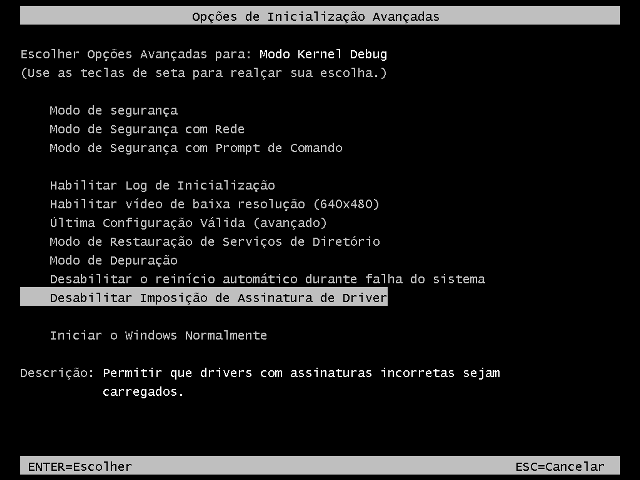
With these two modifications it is possible to test the example driver and get an output in the debugger like the one illustrated below:
[Process Tracer] Action = Blocking
Process Id = 0x3a4
Parent Id = 0xd98
Image name = \??\C:\Windows\system32\notepad.exe
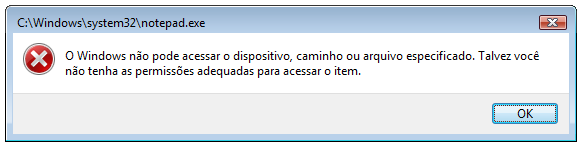
In this case, once again, I tried to start Notepad through the “Run…” menu, but this time the output I got was the one shown below:
Phew! Another giant post for the collection. I hope I helped, and see you next time!
Leave a Reply