

Nowadays, although contradictory it may seem, creating a service does not require much work. A few clicks on a Visual Studio 2005 Wizard and just it, we will have an application capable of providing ATL COM interfaces and which is indeed a Windows service. In this post, I will talk about a little tool that I’m offering as a toast to those who have the patience to read this Blog.
At the first company I worked for as a programmer, about 11 years ago, I was responsible for maintaining Provectus’s software’s data collector communication network. At first, an MFC program was responsible for interacting with the driver that controls the SS140 board, which was the interface that the PC had to be part of this data collector network. Once the program had stabilized, we modified the software to make it a Windows service.
But what is a Service?
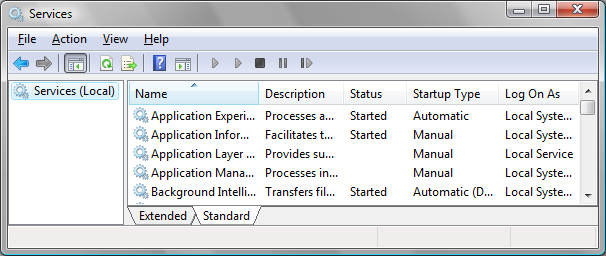
A service is an executable module, which is registered to be executed on the system even if nobody logs on to Windows. Today, many applications and Windows components are implemented as services. A service is not only a common executable registered to get started automatically. A service must provide an interface CallBack routines for the system, in order to respond to commands that start, stop and stay of execution. This interface is not a COM interface as some of you might have guessed. Take a look at the StartServiceCtrlDispatcher function to get an idea of the interface type I am referring to. This is just one of the necessary functions to build a service. Take a walk by reference for details on how to implement a service from the scratch. Services typically run on system account, but it may optionally use a given user account. More details about services, on the MSDN site.
Back to the ’90s, then we needed to make the Supervisor, one of our major programs at Provectus work as a service. Supervisor was a giant program built in Visual Basic 4.0. It was responsible for receiving commands from collector network, and regarding to them, execute Stored Procedures in SQL Server. Visual Basic 4.0 didn’t implement the AddressOf operator, which appeared only in version 5.0. This operator can be used to obtain the pointer to functions written in VB. This allowed such programs registering CallBack routines in the system. Anyway, with this operator, a few pounds of patience and a gun over your head, you could build a service in Visual Basic. We thought about the possibility of rewriting the entire Supervisor in C, so we could then turn it into a service. But luckily someone had an outbreak of sanity and said:
“Why do not you write an empty service that simply calls the Supervisor?”
Yeah, this really works perfectly! This need of having a program behaving as a service is more common than you think, especially when we are talking about business environments. It didn’t take long to some tools that made this possible appear, but nothing prevents me from having my own version.
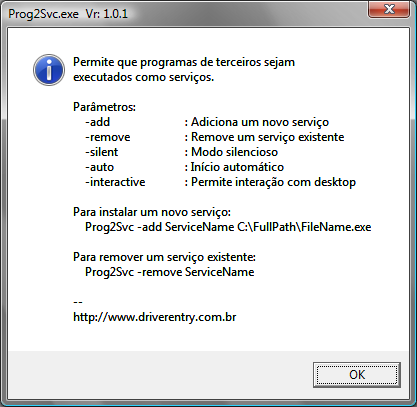
Prog2Svc program is a service that does right that. Running this program without any parameters, you will receive the message below, which tells what the possible parameters are to be used.
Thus, to register the Windows calculator as a service, we use the following command line. Remember that this is an operation that requires administrative rights, so in the case of Windows Vista, this command should be run from a Command Prompt that was started as an administrator.
Prog2Svc -add Calculadora c:\Windows\System32\calc.exe
After the message of success has been shown, you can already see your new service through the Windows Service Manager. To access the service manager, type “services.msc” without the quotes in the Run… window.
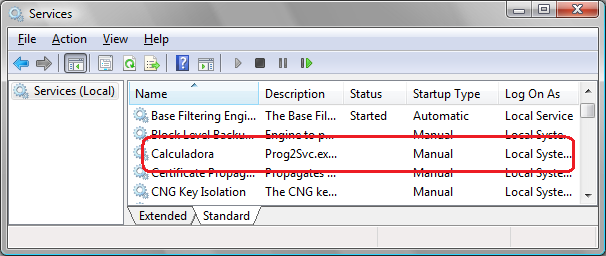
You can start your service either using service manager or using the good old command “net start calculadora” in the Run… window.
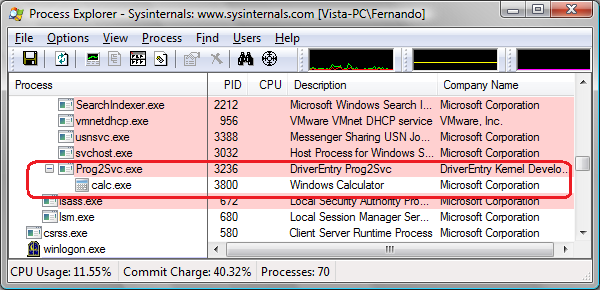
When we start the service, we have no sign that it is really working. That’s because calc.exe was executed on another Desktop, but we can confirm its execution using Process Explorer.
The additional -interactive parameter can make your new service interaction with the Desktop. Note: Windows Vista deserves special attention here. The -auto parameter sets the service automatic to start when the system is turned on. Finally, the –silent parameter makes the installation being silently done. That is, no success or error message will be displayed. Note: In this case, the success or failure can be verified by the Prog2Svc exit code. Another possibility is the use of environment variables in application path that will run. See this example more completely.
Prog2Svc -add -silent -auto BlocoDeNotas %SystemRoot%\System32\notepad.exe
Removing the service is very simple. See example below. Note that to remove services, we can also count on the silent mode.
Prog2Svc -remove Calculadora
Prog2Svc -remove -silent BlocoDeNotas
How does pseudo-service finishes?
When we ask to stop the service, Prog2Svc program receives a notification via CallBack routine. In that time, we could do a flying kick in the process’s chest, but this wouldn’t be good manners. A routine identifies the process created main window and sends a WM_CLOSE message to this window. After that, 30 seconds are expected for the process to have the opportunity to finish their tasks and deallocate system resources. If this time expires and the process is still running, well, it’s like my friend Thiago always says: “Only violence builds” and the process will be dropped out via TerminateProcess().
If you cannot still imagine how this tool might be useful, think you could create a service that runs the Command Prompt, and thus, you will have a shell running on system account. This would help you to test and find out what you could do with this account privilege.
Prog2Svc -add -interactive SysCmd %SystemRoot%\System32\cmd.exe
To install this program, just put a copy of this executable at the System32 directory. Technically, you could put it into any directory, but remember that the folder where it will be should be accessible by a system account. So, do not put it into directories like “My Documents” or any other personal folder.
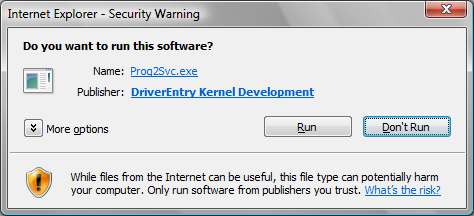
As we know that the Internet is not the safest place to get an executable, make sure the program you are downloading has a valid signature.
Have fun!
- Version: 1.0.1.0
- Windows: 2000, XP, 2003, Vista
Prog2Svc.exe – x86 (58.7 KB)
Prog2Svc.exe – x64 (59.2 KB)
Prog2Svc.exe – IA64 (113 KB)
Leave a Reply